


Samsung Wallet/Pay (Watch)
3.51.94K Reviews
App Specs
- Version
- 8.0.40.20506
- Updated On
- License
- Free
- Downloads
- 50,000,000+
- Developer
- Samsung Electronics Co., Ltd.
- Categories
- Lifestyle
- Platform
- Android, iOS
Screenshots
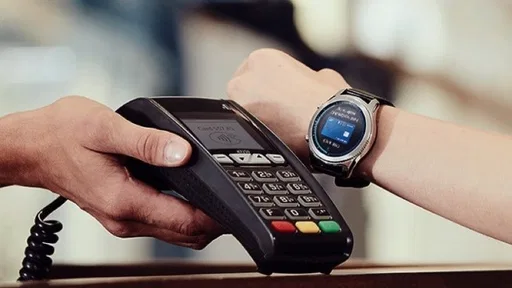
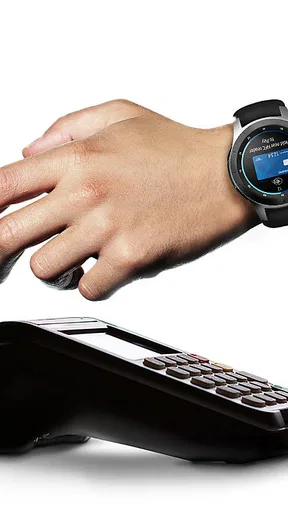
 Analysis by AppCompare
I find Samsung Wallet most useful when I treat it as a backup for the things I reach for constantly, rather than a promise that I can leave every physical card at home. On a Samsung Watch, paying from the wrist can make a quick checkout easier, but the experience depends on a few practical details lining up: your devices, your cards, and the payment terminal. Knowing where those snags tend to happen makes the app much less frustrating to try.
Where wrist payments can get stuck
The first surprise for some people is that installing a wallet on a phone does not automatically make every part of it ready on a watch. The watch and phone need to work together, and you may have to finish setup on one device before the other is ready. I would check the pairing and wallet setup at home, not while a queue is waiting behind me.
A second point is acceptance. A contactless-looking terminal is not a guarantee that a particular payment will work, and a declined tap does not always mean the app is broken. The card issuer, payment network, terminal, and shop all form part of the chain. I keep another payment method with me until I have used the watch successfully in the places I visit.
There is also a small difference between “ready to pay” and simply having the app open. If a payment requires an unlock or other confirmation, fumbling with that step at the counter can erase the convenience. I recommend learning the watch’s payment flow once, when there is no pressure, and checking that the screen is ready before approaching the terminal.
Checks that make setup smoother
Samsung Wallet is a free lifestyle app from Samsung Electronics Co., Ltd. It is rated for Everyone, and its current version is 8.0.20.20806. The app has been available since June 23, 2020, and it is built for devices running Android 9 or later. Those details matter most when you are deciding whether an older phone or a different device setup is likely to be a sensible fit.
Before adding a card, I would make sure the phone and watch are connected as expected, then follow the prompts in the app rather than assuming the same steps apply to every card. Card verification is a normal part of setup, and it can involve your bank’s own process. If a card cannot be added, checking its details and completing any bank verification is a better first move than repeatedly removing and trying to add it again.
Samsung Wallet has a 3.5 average from around 39,000 ratings, with over 50 million installs. That tells me it is widely used, but popularity does not guarantee a flawless fit for every watch, card, or checkout. I would judge it by one practical test: can you add the payment method you rely on and complete a small, ordinary purchase with your own setup?
Worth Reading Before You Choose

EA SPORTS FC Mobile 26 Is a Bigger Football Game, but It Takes Time

Flipboard Shows What News Apps Must Do Beyond the Feed

Switching to Android Auto Means Rethinking Your Driving Routine

Google Calendar Makes a Crowded Week Easier to Manage

Ludo King Makes the Most of the Minutes Between Plans

Baby Panda World Brings Quick Play to Modern Phones, but Its Game Library Feels Busy
Recovering a payment workflow
If a tap fails, I avoid immediately repeating it several times. First I check whether the watch appears ready for payment, then reposition it near the terminal’s contactless area and give the reader a moment. If the terminal reports a decline, I switch to another payment method and sort out the cause later; holding up a line rarely helps diagnose it.
When the problem happens more than once, I work through the chain in order: confirm the card still appears in Wallet, check that the watch remains connected to the phone, and look for any unfinished verification prompt. Restarting the relevant devices can be a reasonable general troubleshooting step if the connection seems stuck. I would avoid deleting a working card as the first fix, since that may mean repeating its verification process.
For everyday reliability, I also keep the phone charged and carry a physical card when I know I will be somewhere that may not accept a watch payment. That is not a failure of the app; it is a sensible backup for any contactless payment method. The wrist is a convenient place for a commonly used card, not a substitute for planning around every possible checkout.
When another option makes more sense
If you use a Samsung phone and watch, this is a natural place to try wrist payments because it belongs to the same device family. If you use a phone from another brand, or do not own a compatible Samsung Watch, the setup may be less appealing; the wallet already built into your phone may be the simpler choice. I would not buy or switch devices solely for this app unless paying from the wrist is important enough to justify the change.
Compared with carrying a physical wallet, Samsung Wallet can make a short checkout feel effortless, but a physical card does not depend on the watch being charged or properly connected. Compared with paying by phone, the watch keeps your hands freer, while the phone is usually easier to navigate if you need to inspect or change something. I see those options as complements rather than rivals: use the watch for quick taps, and keep a backup for exceptions.
The app is free, but the real trade-off is convenience versus dependence on a supported device setup and on acceptance at the point of sale. It suits people who already use Samsung devices, make frequent contactless purchases, and are comfortable checking that a card is ready before relying on it. It is less compelling if you rarely pay by card, prefer not to manage wallet setup, or need one payment method that works regardless of watch battery or device pairing.
If you are wondering whether the watch can replace your wallet completely, my answer is no—not reliably enough for every situation. Whether your own bank card can be added and used is the question to settle first, followed by whether the shops you visit accept that payment method. Try it with a routine purchase before depending on it for travel or a day out, and keep a backup while you learn its limits.
If you've ever wished you could leave your wallet at home while still having everything you need at your fingertips, then you'll be thrilled with what Samsung Wallet offers, especially when paired with a Samsung Watch. I've been diving into this app, and let me tell you, it’s like having your very own tech-savvy assistant right on your wrist.
Setup and First Impressions
Getting started with Samsung Wallet on your watch is a breeze. Once you download the app and sync it with your phone, you’re pretty much ready to roll. The interface is sleek and intuitive, which is honestly a relief because nobody wants to fiddle with complicated settings when you’re just trying to pay for your morning coffee.
Setting up your cards is straightforward. You simply take a picture of your card, verify a few details, and you’re good to go. I appreciated the added security steps, like biometric verification. It’s nice to know that your financial info is safe, even if you’re as forgetful as I am!
Features That Stand Out
Now, onto the features—because that’s what we’re really here for, right? First off, the app supports a wide range of cards, not just your typical credit and debit cards. You can add loyalty cards, membership cards, and even some transit cards, which is super handy for those of us who juggle a million things.
One cool feature is the ability to track your spending directly from the app. I can't emphasize enough how helpful this is for budgeting. With just a quick glance at my watch, I can see where my money is going, which is both enlightening and a little scary!
And let’s talk about the convenience factor. Imagine standing in line, maybe juggling a coffee in one hand, and being able to pay with a quick tap on your wrist. It’s seamless and actually feels kind of futuristic.
Everyday Use and Performance
Using Samsung Wallet in everyday life has been a game-changer for me. Whether I’m hitting the grocery store or grabbing a quick bite, having payment capabilities on my watch makes transactions smooth and quick. The app's performance is reliable, and transactions are processed swiftly, which is a huge plus when you’re in a rush.
The real standout is how it integrates with other Samsung services. If you’re already in the Samsung ecosystem, this app fits in like a missing puzzle piece. It’s all about creating that seamless experience across devices.
Things to Keep in Mind
While I’m a fan of Samsung Wallet, there are a few things you should be aware of. The app is quite dependent on having a Samsung phone, so if you’re using another brand, you might not get the full experience. Also, keep in mind that not every store accepts mobile payments yet, although the list is growing every day.
Battery usage is another consideration. While the app itself doesn’t drain a lot of battery, using it frequently alongside other apps can take a toll on your watch’s battery life. It’s something to keep an eye on, especially if you rely heavily on your watch throughout the day.
Final Thoughts
Overall, diving into what Samsung Wallet has to offer, especially on a Samsung Watch, has been a fantastic experience. It’s one of those apps that seamlessly integrates into your life and makes managing your finances on the go incredibly easy. If you’re a Samsung user, it’s definitely worth checking out. The convenience, coupled with the security features, makes it a solid choice for anyone looking to simplify their wallet.
So, if you’re ready to embrace a more tech-forward way of handling payments, give Samsung Wallet a try. It might just become your new favorite app.
Pros
- Seamless integration with Samsung devices.
- Supports a wide range of payment methods.
- Easy setup and intuitive user interface.
- Strong security features with biometric authentication.
- Compatible with most major banks and cards.
Cons
- Limited to Samsung devices only.
- Not universally accepted at all retailers.
- Requires Samsung account registration.
- Occasional connectivity issues reported.
- Updates can be slow to roll out globally.
FAQs for Samsung Wallet/Pay (Watch)
What is Samsung Wallet/Pay for Watch, and how does it work?
Samsung Wallet/Pay for Watch is a convenient digital payment solution that allows you to make contactless payments directly from your Samsung smartwatch. By linking your credit or debit cards to the app, you can pay at any terminal that accepts contactless payments. The app uses NFC technology to securely transmit payment information, making transactions quick and seamless.
Is Samsung Wallet/Pay for Watch secure?
Yes, Samsung Wallet/Pay for Watch is designed with security in mind. It uses tokenization to replace your card details with a unique identifier, ensuring your sensitive information is never exposed during transactions. Additionally, the app requires authentication, such as a PIN or biometric verification, before initiating a payment, adding an extra layer of security.
How do I set up Samsung Wallet/Pay on my smartwatch?
To set up Samsung Wallet/Pay on your smartwatch, you need to have the Samsung Galaxy Wearable app installed on your smartphone. Open the app, navigate to the Samsung Wallet/Pay section, and follow the prompts to add your credit or debit cards. Once set up, you can quickly access the app on your watch and start making payments.
Can I use Samsung Wallet/Pay without a Samsung phone?
Unfortunately, Samsung Wallet/Pay is designed to work optimally with Samsung devices. To use it on your smartwatch, you need to pair it with a compatible Samsung smartphone. The integration between the Samsung ecosystem ensures seamless operation and access to all features, which may not be fully supported on non-Samsung devices.
What should I do if I lose my smartwatch with Samsung Wallet/Pay installed?
If you lose your smartwatch, it's important to take immediate action to protect your financial information. You can use the Samsung Wearable app on your smartphone to remotely lock or erase the data on your watch. Additionally, contacting your bank to temporarily suspend your cards linked to Samsung Wallet/Pay can prevent unauthorized transactions.


